How to use Facebook???
Signing Up for a Facebook Account
To sign up for a Facebook account, follow these three easy steps.
- Visit Facebook’s website.
- On the homepage, fill out your first name, last name, mobile number or email, password, birthday, and gender.
- Press "Sign Up".

Setting Up Your Privacy Settings
After you’ve signed up for a Facebook account, you can adjust your privacy settings to control who can see your profile and information. Follow these four simple steps to change your privacy settings.
- Click on the downward pointing arrow that’s located on the top right corner of any Facebook page.
- Click “Settings”.
- In the left sidebar, press “Privacy”.
- Set who is allowed to see your past and future posts. You can also control how people can find and contact you.

Personalizing Your Profile
Odds are, there’s probably someone on Facebook who has the same name as you. To differentiate yourself from these people and help your friends and family find you on Facebook, personalize your profile by adding a profile picture, cover photo, and some personal information.
Picking a Profile Picture
- Go to your profile and click on your profile picture.
- To pick your profile picture, choose a photo that you’re already tagged in on Facebook, one that you’ve uploaded to Facebook, or a photo from your computer. You can also add a frame to your profile picture.

Choosing a Cover Photo
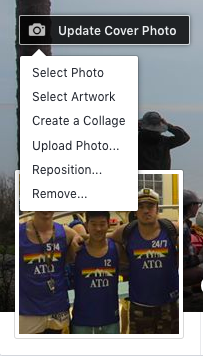
- Click the camera button on your cover photo, which is on your profile.
- To choose your cover photo, you can pick a photo from your Facebook profile, a selection of Facebook’s own cover artwork, create a collage, or upload a photo from your computer. You can also reposition or delete your current cover photo.
Updating Your Profile
- Click the “About” section on your profile page.
- In this section, you can fill in information about your work and education, the places you’ve lived, contact and basic info, family and relationships, details about you, and life events.

Liking and Following Public Pages
On Facebook, you can follow and get updates from your favorite brands, celebrities, sports teams, and publications. The best way to do this is by searching for them on Facebook and liking or following their public page, which will have a blue verified check mark next to their name. After you like or follow their page, you’ll start to see their updates in your news feed.

Your Timeline
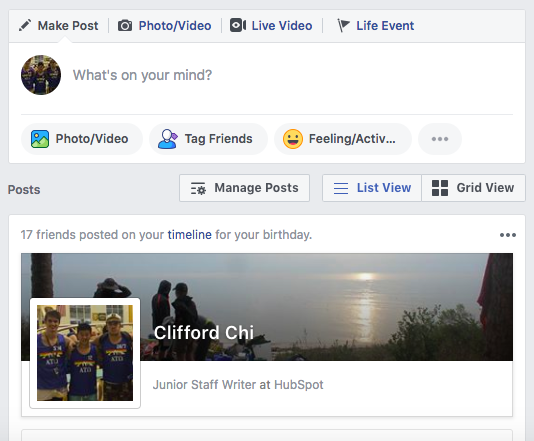
Your timeline is a digital log of your Facebook activity in reverse-chronological order. Your status updates, uploaded photos and videos, and the photos you’re tagged in will appear on your timeline.
Adding Friends on Facebook
There are three ways you can add friends on Facebook. You can either search for them, find them in the "Find Friends" tab, or import a list of contacts from your email, iCloud, or phone.
To find friends on Facebook, go to your profile, press the "Friends" tab, and click the "Find Friends" button. You’ll see a list of friend requests from other people and a list of people you may know that you can add as a friend on Facebook.
If you upload a list of contacts onto Facebook, you can add your friends as you sort through each of your contacts.

Posting on Facebook
The main purpose of Facebook is to help friends and family connect with each other. And the best way to connect with your friends and family is by updating them about your life with status updates. To share a Facebook status, go to the text box at the top of your news feed page or on your profile page.

With status updates, you can share text with 15 different colored backgrounds, photos, videos, GIFs, stickers, and links..
You can also share other types of posts, like:
- Feeling/Activity: share how you’re currently feeling or what you’re currently doing.
- Check in: when you visit a city, location, or place, check in and let your friends know where you’re at.
- Tag Friends: if you’re hanging out with your friends, tag them in your status and share what you’re doing.
- Tag Event: if you’re at an event, you can tag it in your status and share what event you’re attending.
- Ask for Recommendations: if you just moved somewhere or you’re about to visit a location, you can ask your Facebook friends for recommendations on where to go.
- Poll: ask your Facebook friends what their opinion is on a certain topic.
- Support Nonprofit: choose a nonprofit organization of your choice and share it through your status. Your Facebook Friends can then press the donate button to support the chosen organization.
- Answer a Question: choose a predetermined question to answer or create your own question to answer and share it with your Facebook friends.
- Lists: choose a predetermined topic to make a list for or create your own topic and share it with your Facebook friends.
- Facebook Stories: all the content that you can share through a status update is shareable through your Facebook story. You can also upload content to your stories by clicking the Add to Your Story button on the right sidebar. Additionally, you can watch all your friends’ Facebook Stories by clicking on their picture in the Stories section, which is also located on the right sidebar of your home page.

Comments
Post a Comment